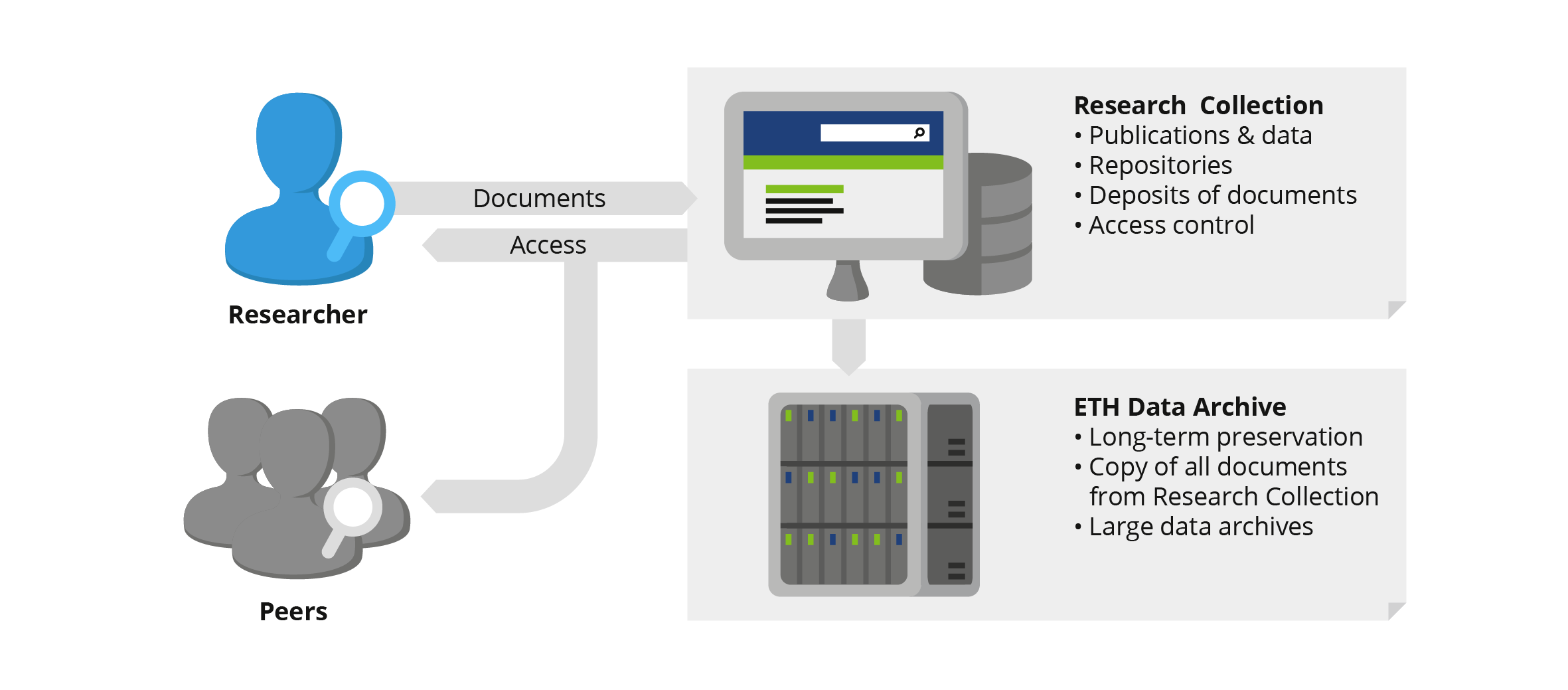
ETH Research Collection Route
© Andres Bucher
Contribution by Dr. Julian Dederke and Dr. Fabian Schmid, Research Data Management and Digital Curation Team at ETH Library, ETH Zurich
- If you need to publish datasets larger than 50 GB, read How to publish large datasets.
- Go to the ETH Research Collection and search to see if your asset is already listed. The ETH Research Collection regularly imports ETH publications from external databases. If not, click the “Submit” button.
- Follow the directions start your submission. If you are submitting “New” data, select Research data > dataset, and be prepared for the following mandatory fields:
- Author / Creator
- Title
- Publication Year
- Organisational Unit (drop-down)
- Was this data published during the authors’ affiliation with ETH Zurich?
- Fill in as many of the other fields as you can. NCCR CLIM+'s SNSF grant number is 51AU-0_229306.
Step-by-Step Guide
↗Zenodo Route (Data and Code Archive)
- Go to zenodo.org and create an account (or log in).
- In the top panel, select “New upload”.
- Upload your files (up to 50 GB and up to 100 files).
- Select your resource type (e.g., “dataset” or “software”).
- Add your title and (co-)authors.
- By default, the Creative Commons Attribution 4.0 International (CC BY 4.0) license is used, which is suitable for datasets. For software, we recommend selecting a BSD-3-Clause license.
- You can add further information about your upload below, such as keywords, funding, related works, or references, but these are optional. NCCR CLIM+'s SNSF grant number is 51AU-0_229306.
- You can check your upload by clicking on “Preview".
- Once you are happy with your upload, click on “Publish” (this cannot be undone).
Contribution by Dr. Florian Römer, WP2 Researcher, Climate Physics, ETH Zurich
Git + Zenodo Route (Code)
- Make sure your Git repository contains a README and an appropriate license. We recommend selecting a BSD-3-Clause license.
- Commit and push the final changes to the repository.
- Create a version tag for the release (for example, v1.0.0) and push the tag to the remote repository.
- Create a corresponding Release on your Git hosting platform (e.g., GitHub or GitLab), using the version tag and adding a short description of the release.
- Link the repository to Zenodo. For GitHub repositories, Zenodo can be connected to GitHub so that releases are automatically archived. Once the repository is enabled in Zenodo, creating a new GitHub release triggers Zenodo to archive that version and create a DOI.
- Add the resulting Zenodo DOI to the repository README.
- When referring to the code from a publication or project website, provide both the Git repository link (for the actively maintained code) and the Zenodo DOI (for the archived, citable version).